Using UTE (Universal Table Editor)
Introduction
UTE (Universal Table Editor) is a software application running on the ezSolutions web server(s) that you can run via your web browser to work with data that is stored within your database(s) hosted at ezSolutions (including but not limited to Microsoft Access and PostgreSQL databases). Using UTE you can view, edit, add, delete and export data (in comma separated value (CSV) format) stored within your database's tables. Depending on your hosting account level, you may also be able to send mass emails via the UTE interface. Your UTE interface is password protected for data security reasons. Please refer to your account information for your username, password, and UTE URL (link to your online UTE interface).
Please be certain you understand your database before you edit the data within it. You database may be driving web page contents. You may wish to note existing values prior to manipulating data, if your changes cause adverse affects you can then reverse them. We recommend testing the effects of all changes. If you feel you do not wish to work with your database, ezSolutions is available to do so at current hourly rates.
Main UTE Page
The main UTE page shows your database schema, and offers links to work with the database elements. The figure below (Fig. 1) will likely differ from the look of your mail UTE page as your database schema differs from the database represented below. The database schema represented here does not include any linked tables, nor does it containing table views (known within Microsoft Access as "queries"). Tables are two-dimensional data storage objects with x rows (A.K.A. records) and y columns (A.K.A. fields), much like a spreadsheet. Linked tables are just tables that are stored in an external database which can be accessed from the current database. "Table views" are simply alternative views of the two table types mentioned above.
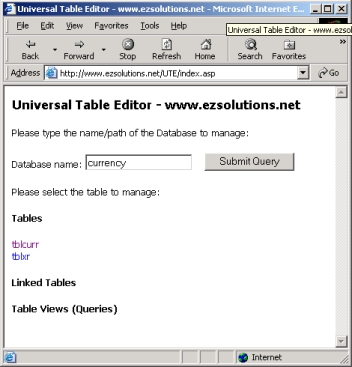
Fig. 1
Just click on the name of the object to work with the data stored within it.
Working with Data (View, Add, Edit, Delete, Export, Mass Email)
When you click on an object, that object will open in view mode. Here we have clicked on the tblCurr object link in Fig. 1, the object has opened up in view mode in Fig. 2 below.
If the table has many records (AKA rows) you may wish to filter the data using the "Where ..." filter tool at the top of the page, if not, you can ignore this feature.
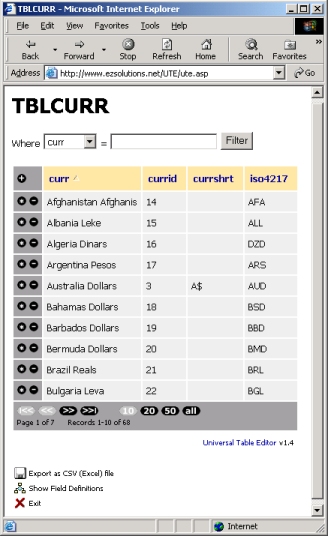
Fig. 2
You can scroll through/view additional records (if applicable) by using the
navigation buttons and "view 10/20/50/all records (at a time)"
buttons at the bottom of the page (


 ).
).
You can sort the data, ascending or descending, by clicking on a field name at the top of any column.
You can view/hide field definitions, if any, by clicking on the
definition icon ( ).
If your database was designed by ezSolutions the field names should be
intuitive (field definitions may not be present).
).
If your database was designed by ezSolutions the field names should be
intuitive (field definitions may not be present).
Once in view mode, you can choose what you wish to do with the data, if anything, in addition to just viewing it. Please read on for specific details.
When you are done viewing an object, click on the exit icon ( )
to "cleanly" close that object.
)
to "cleanly" close that object.
Adding Data*
To add a record (row of data), click on the plus icon ( )
at the upper left-hand corner of the table. A new screen will
appear, you will have the opportunity to add new data, or cancel the
action.
)
at the upper left-hand corner of the table. A new screen will
appear, you will have the opportunity to add new data, or cancel the
action.
Editing Data*
To edit a row of data, click on the asterisk icon ( )
that corresponds with the row of data you wish to edit. An edit
screen will appear, you will have the opportunity to edit the data, or
cancel the edit.
)
that corresponds with the row of data you wish to edit. An edit
screen will appear, you will have the opportunity to edit the data, or
cancel the edit.
Deleting Data
To delete a record click on the minus icon ( )
in the row of data you wish to delete. You will be asked for
confirmation.
)
in the row of data you wish to delete. You will be asked for
confirmation.
Exporting Data
To download the data as a CSV file (comma separated
values), which can be opened in a spreadsheet application such as
Microsoft Excel, click on the download icon ( )
that appears in the object view screen. The exported data cannot
be imported back into your database using UTE.
)
that appears in the object view screen. The exported data cannot
be imported back into your database using UTE.
Mass Emailing
If your account is setup to allow mass emailing from within UTE, UTE will automatically detect fields that contain email addresses. This can be a very quick and simple way to send email to many email accounts at once -- all without revealing the email address of each recipient to any one recipient.
UTE will offer you a button at the bottom of fields detected to be fields holding a one or more valid email addresses. Clicking this button will open en email authoring screen. From this screen you can send an email to all of the valid email addresses found in the field.
Further Notes On Using UTE
* If you receive errors when adding or editing data it is likely that you have not entered required data, or that data you have entered is invalid for the field(s). If you see data that you can't edit, this is a key field that can't be edited by design. If a key field value must be edited for some reason (this is rarely required) you must delete and recreate the record. Even then it may not be possible to manipulate the key value if it is a key field with a default value (such as an auto-number field).
Please feel free to contact us if you have any questions.